
Open a password-protected ZIP
How to open a password-protected ZIP file on Windows 11
Windows will not do it. Something else has to, and the password has to come from a person - here is what happens at each step, including what happens if you do not have it.
Expect File Explorer to refuse
Windows File Explorer does not support operations on encrypted archive files. It may show you the file names inside and then fail when it tries to extract, which is why the error often arrives after you thought it had worked.
Open it with a tool that handles encryption
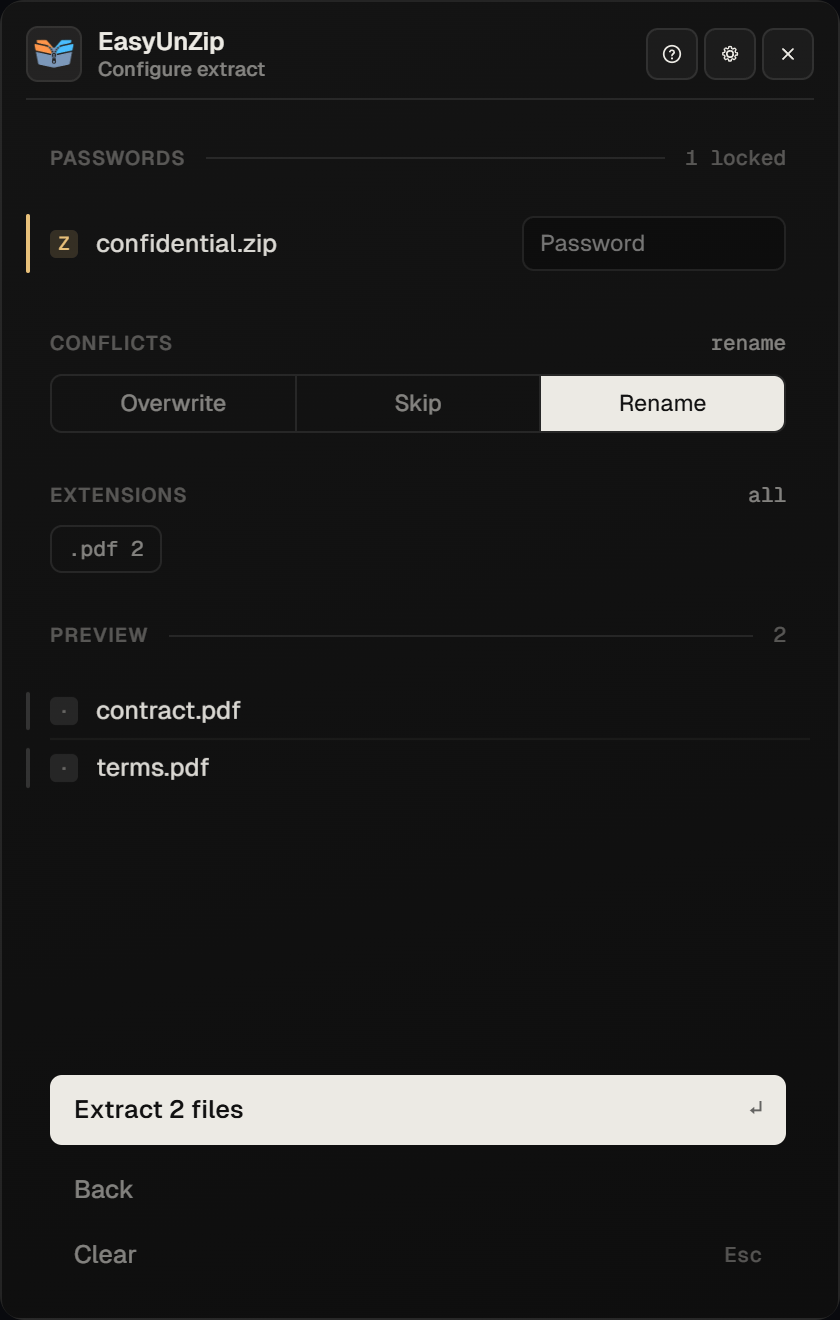
7-Zip is free and does this: right-click the archive, choose 7-Zip, then Extract files, and it asks for the password. WinRAR and EasyUnZip do the same. On the command line it is 7z x archive.zip -oExtracted, which prompts for the password rather than taking it as an argument.
Type the password exactly as it was given to you
Archive passwords are case-sensitive and keep leading and trailing spaces, which is what a pasted password from a chat message often carries. There is no attempt limit and no lockout, so a second try costs nothing.
Check what came out, not just that it finished
A wrong password does not always stop the job. We tested it: 7-Zip reported Wrong password for every entry and still wrote both files to disk at zero bytes. Open a file before you trust the folder, and read the errors rather than the file count.
If you do not have the password
Then the files are not available to you. That is the whole answer, and every page that softens it is selling something.
Encryption in a ZIP or RAR is real encryption. The contents are not hidden behind a prompt that can be skipped - they are scrambled, and the password is the key. There is no setting, no repair mode and no utility that opens one without it. Ask whoever sent the archive.
We do not link to password-recovery tools. The ones that work are guessing programs that take days on a strong password and belong only to the person who owns the archive; the ones that advertise heavily on this subject are frequently neither effective nor safe to run.
How EasyUnZip treats the password
- Asked once, when the archive turns out to be encrypted - not before.
- Held in memory for that session only.
- Never written to disk, and never included in anything the app sends.
- Gone when the app closes. Remembering it would mean storing it, and a stored password is a password that can leak.
The security page lists everything that does and does not leave the machine.
Sending an encrypted archive to someone else
EasyUnZip cannot make one - it only extracts. Use whatever you make archives with, and send the password through a different channel from the file. A password in the same email as the archive protects nobody from anyone who can read the email.
Checked on 18 September 2026 against 7-Zip 25.01 - the same engine EasyUnZip runs - using a password-protected ZIP holding two files. Listing it without the password returned both filenames, sizes and dates. Extracting with a wrong password reported Wrong password for each entry and still wrote both files at zero bytes, which is the behaviour the steps above warn about. A 7z archive built with header encryption refused to list at all.
Documentation re-checked on 7 October 2026: Microsoft's current Windows 11 guidance directs encrypted archives to another app. WinRAR's encryption FAQ confirms that RAR can encrypt filenames as well as file data.
Common questions
Can Windows 11 open a password-protected ZIP?
Microsoft's current Windows 11 archive guidance says encrypted archives require another app. Use 7-Zip, WinRAR or EasyUnZip with the password from the sender. An archive may show its filenames before refusing to extract encrypted content; seeing the list does not mean Windows can open every file.
Why can I see the file names but not open the files?
Because most encrypted ZIPs encrypt the contents and leave the index readable. We checked: a ZIP encrypted with a password still listed both filenames, their sizes and their dates without the password being given. Some formats, including 7z and RAR, also support encrypted headers that hide the names until a password is provided.
How do I open a ZIP if I forgot the password?
You do not. Encryption is the point of the feature, and the files are genuinely unreadable without the key - there is no back door, no reset and no support line that can help. Ask whoever sent it. If you made it yourself, check the password manager you were using at the time.
Do password recovery tools work?
Only by guessing, and only when the password is short or obvious. They try candidates until one works, which is fast against a four-character password and hopeless against anything modern - AES-256 with a decent passphrase is not recoverable in any useful timeframe. We do not link to any of them.
Is the password stored anywhere after I type it?
In EasyUnZip, only in memory, and only until the app closes - never on disk, never in the registry, and never in anything it sends. That is why it asks again next time. Other tools differ; a tool that offers to remember an archive password is a tool that has written it down somewhere.
Can I remove the password from a ZIP once I have opened it?
Not directly - you extract the files and make a new archive without a password. EasyUnZip cannot do the second half: it only extracts, and never creates archives. Use whatever you normally make archives with.