
Batch extract
Batch extract ZIP files on Windows
Select many ZIP or RAR archives in File Explorer, press Alt+E once, and choose whether they share a folder or each get their own - batch extract on Windows without a script.
How it works with EasyUnZip
Select every archive in Explorer
Shift-click or Ctrl-click the ZIP files - and RARs if they are in the same folder. File Explorer's Extract All wizard handles one archive; this path is for the rest.
Press Alt+E once for the whole selection
The panel opens with a count of archives found. You are not launching a wizard per file or writing a PowerShell loop unless you want to.
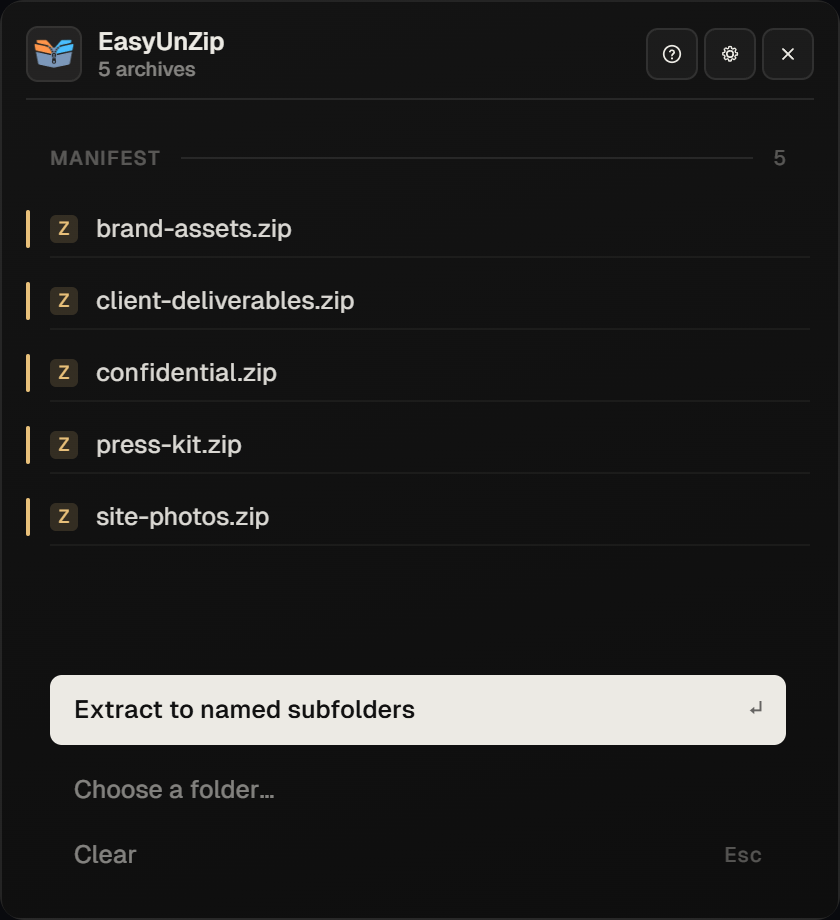
Pick a routing pattern
Send everything into one folder, give each archive its own subfolder named after it, or set a custom path per archive. That choice is the whole point of batch extract on Windows when the archives are unrelated projects.
Set conflict policy, then extract
Choose overwrite, skip or rename for name collisions across the job. Extract. EasyUnZip writes locally and closes the panel when the batch finishes.
Batch extract without a script
PowerShell and 7-Zip can batch extract ZIP files on Windows if you already use them. EasyUnZip is for the same job from Explorer: one hotkey, a clear routing choice, and a conflict policy for the whole batch. It does not create archives and does not open 7z, TAR or GZ.
Related guides
Step-by-step with PowerShell and 7-Zip: extract multiple ZIP files at once. Keeping existing work safe: extract without overwriting. Formats: ZIP and RAR only.
Common questions
Can File Explorer batch extract ZIP files on Windows?
Not in one pass. Extract All is per archive. For several ZIPs you repeat the wizard, use PowerShell, use 7-Zip's context menu, or use a batch-aware extractor like EasyUnZip.
Can I mix ZIP and RAR in one batch?
Yes. Select both formats together; the panel lists each with its format tag and extracts them in one job with the same destination rules.
How do I avoid overwriting files when batch extracting?
Prefer a fresh destination or per-archive subfolders, and set the conflict policy to Skip or Rename before you run. See the guide on extracting without overwriting.
Is batch extract included in the trial?
Yes. The 14-day trial includes batch extract, filters and passwords. After that a key is $9.99 once - there is no separate batch edition.
Does batch extract upload my archives?
No. EasyUnZip is a Windows desktop app. Batch extract ZIP files on your PC only; nothing about the archives is sent to a server.